
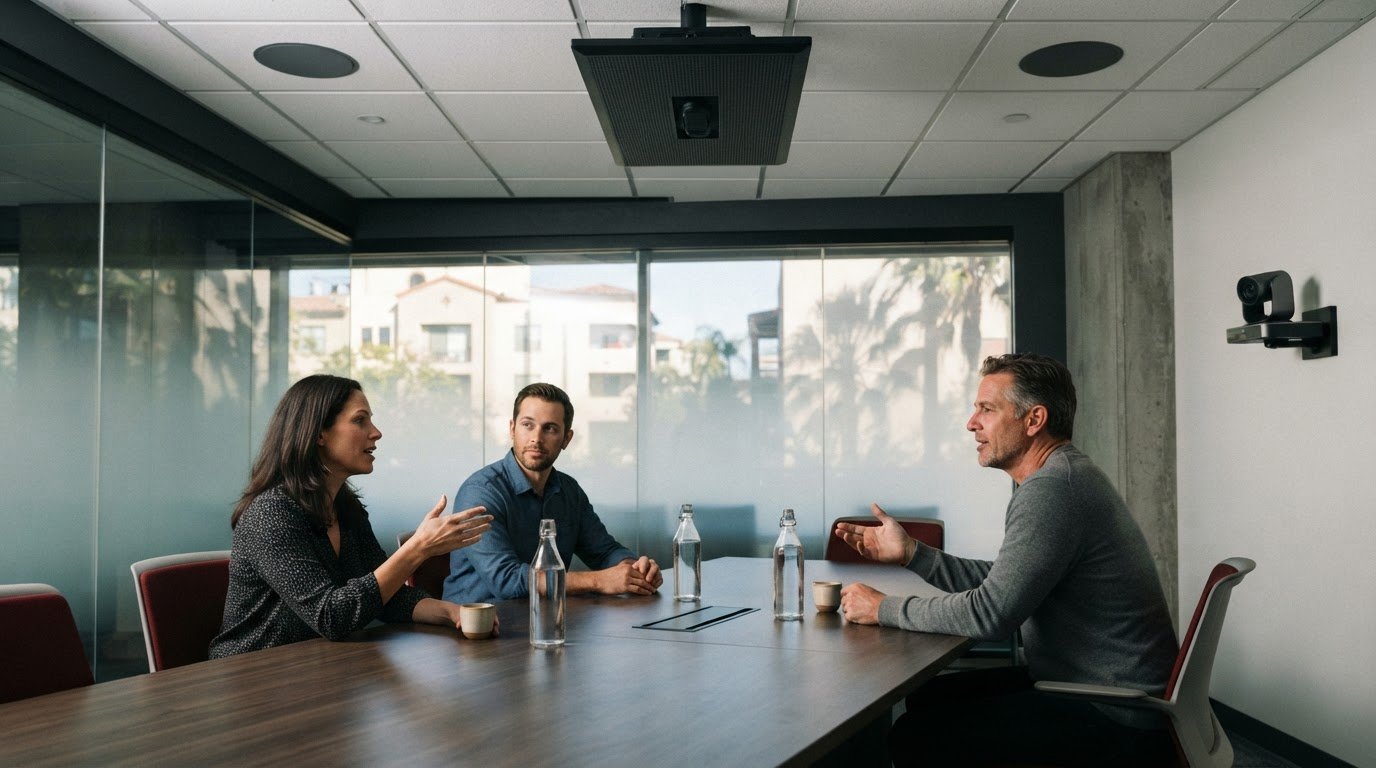
A professional commercial audio visual installation involves much more than simply mounting displays or connecting speakers. At Gradius IT Solutions, an experienced AV integrator consults with your team, installs equipment tailored to how your business uses each space, thoroughly tests the system, trains your staff, and provides reliable ongoing support. The ultimate goal is seamlessly integrated technology that is always ready for the critical meetings, presentations, and daily operations your company relies on.
It is entirely reasonable to expect a clear implementation plan, dependable equipment, and fewer technical surprises. This article explains what an AV integrator does, how a commercial audio visual installation progresses from initial consultation to long-term support, and what to consider when planning AV for your enterprise. Thoughtful equipment choices can make conference rooms, shared spaces, and business communications significantly easier to use.
Key Takeaways
- Plan digital signage around what viewers need to see and where they’ll see it, so displays serve a clear business purpose.
- Ask for system testing, clear documentation, and hands-on training so staff can use the equipment with confidence.
- Start AV consultation by mapping each room’s uses, users, and connection needs before selecting equipment.
- Design conference room technology around the way your team meets, including the needs of in-room and remote participants.
- Coordinate installation details, from equipment placement to wiring, to create a setup that works smoothly in daily operations.
Digital signage and video walls
Digital signage, room displays, and video walls serve different purposes. Plan around the content, viewing distance, source, and how people use each space.
Digital Signage and Large-Format Displays
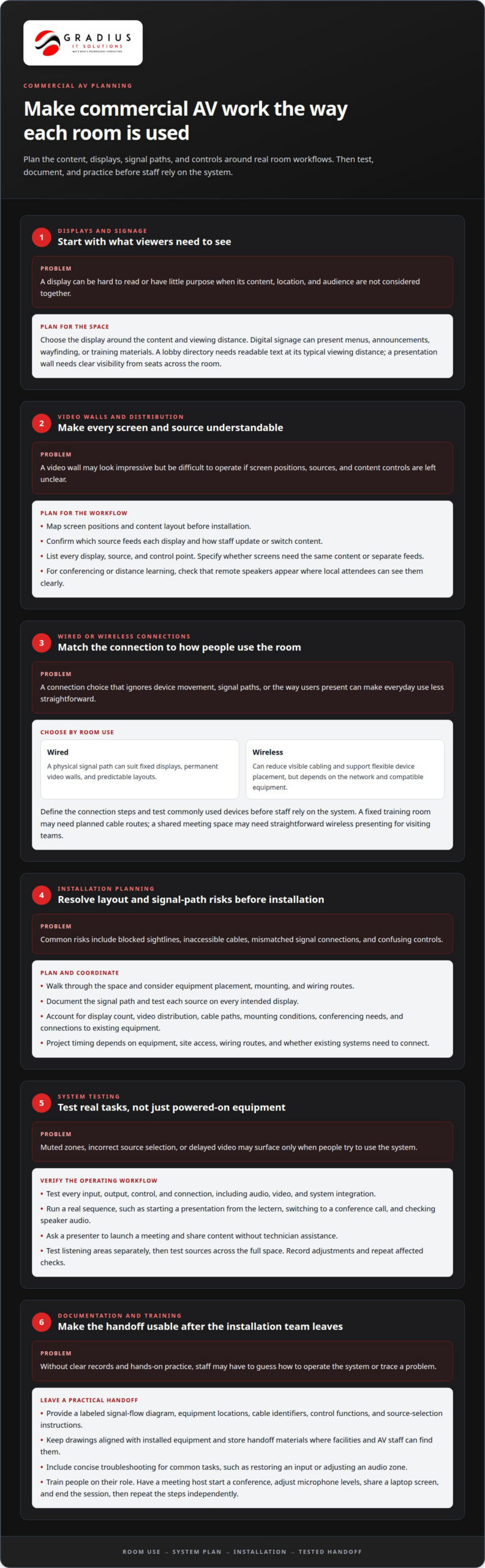
Digital signage presents changing content, such as menus, announcements, wayfinding, or training materials. A large-format display can serve one viewing area, while a video wall combines multiple screens into a single visual surface. Start by identifying the content and where viewers will stand. A lobby directory needs readable text at its typical viewing distance; a presentation wall needs clear visibility from seats across the room.
For a video wall, map screen positions and content layout before installation. Confirm which source feeds the display and how staff will update or switch content. Planning these details helps prevent a wall that looks impressive but is difficult to operate.
TV Mounting and Video Distribution
Commercial TV mounting involves choosing display positions, securing mounts, routing cables, and connecting each screen to its intended source. In a restaurant, one screen might show a menu while others carry a shared program. Video distribution sends a signal from a source to one or more displays, helping teams manage content across separate spaces.
During planning, list every display, source, and control point. Specify whether screens need the same content or separate feeds. For video conferencing and distance learning, map where cameras and participants will appear on screen. This can prevent confusing layouts, such as remote speakers appearing on a display local attendees cannot see clearly.
Wired and Wireless System Choices
Wired audio-video connections create a physical signal path between equipment. They can suit fixed displays, permanent video walls, and rooms with predictable layouts. Wireless connections reduce visible cabling and support flexible device placement, but depend on the network and compatible equipment. Choose based on room use, signal paths, device movement, and how reliably users need to connect.
Compare the actual workflows. A fixed training room may benefit from planned cable routes between the instructor station and display. A shared meeting space may need straightforward wireless presenting for visiting teams. For either setup, define the connection steps and test commonly used devices before staff rely on the system.
Installation Planning and Common Risks
How do you choose a commercial AV installation company? Look for a clear project plan that covers room use, equipment placement, wiring, testing, documentation, and user training. A practical proposal should explain how each display, source, and control point works together.
How much does commercial AV installation cost per room or square foot? There is no single figure that applies to every room or area. The scope depends on the number of displays, video distribution, cable paths, mounting conditions, conferencing needs, and integration with existing equipment.
How long does a commercial AV installation take? Timing depends on the amount of equipment, site access, wiring routes, and whether existing systems need to connect. Straightforward display mounting differs from a video wall project involving multiple sources and control points.
Common risks include blocked sightlines, inaccessible cables, mismatched signal connections, and confusing controls. Walk through the space, document the signal path, and test each source on every intended display before handoff.
System testing, documentation, and user training
Installation is complete only when each system works under real operating conditions. Test audio, video, controls, and integration against the tasks people perform every day.
System Testing
Test every input, output, control, and connection in the installed AV system. For example, start a presentation from the lectern, switch to a conference call, then confirm the room speakers deliver clear audio. In a broadcast setting, check camera feeds, microphones, displays, and program audio together. Testing can uncover muted zones, incorrect source selection, or delayed video before staff depend on the system.
Include the people who will use the equipment in acceptance checks. Ask a presenter to launch a meeting and share content without technician assistance. For commercial audio system design, test each listening area separately, then play sources across the entire space. Record adjustments and repeat the affected test before handoff.
Installation Documentation
Useful documentation explains how the installed system is connected and operated. Include a labeled signal-flow diagram, equipment locations, cable identifiers, control functions, and instructions for selecting each source. For a sports venue, document how a broadcast feed reaches the main display and any secondary screens. Clear records help staff and technicians trace problems without guesswork.
Keep the final drawings aligned with the installed equipment. If a display or audio component moves during construction, update its location and connection details. Add a concise troubleshooting guide for common tasks, such as restoring an input or adjusting an audio zone. Store the handoff materials where facilities and AV staff can find them.
Training should reflect the work people do, not just cover every control. Have a meeting host start a conference, adjust microphone levels, share a laptop screen, and end the session. Then ask the host to repeat the steps independently. For a broadcast booth, train operators to select the right feed and confirm sound reaches the intended displays. Short, role-based practice helps expose errors before a live event.
Commercial AV system design and consultation should start with room use, signal sources, and user responsibilities. A lecture space may need a presenter microphone, audience audio, and remote instruction feeds. A sports and entertainment venue may need broadcast video routed to several viewing areas. List these workflows before installation, then test each one in the space where it will be used.
What factors affect commercial audio visual system installation pricing? Key factors include equipment quantity, system complexity, cable routes, mounting conditions, integration needs, and the work required for testing and training. A single display with a simple source path differs from a multi-zone sound system or broadcast setup.
To connect AV decisions with broader workplace technology planning, explore technology planning support as you define system requirements and handoff responsibilities.
AV consultation, integration, training, and support
Begin consultation by listing the tasks each room must support. A conference room may need laptop sharing, clear speech, and remote participation. A reception area may need background audio and announcements. These examples help an integrator map users, equipment, connections, and controls before recommending a design. The aim is a system that fits actual work, not a collection of disconnected devices.
Integration connects displays, microphones, speakers, control panels, and signal sources in one usable environment. First, document how teams move from one task to another. For example, a meeting host might start a video call, switch to a presentation, then share a laptop display. The design should make each step clear and account for existing network and room equipment.
Site consultation should also account for room layout and daily conditions. Walk through the space with facilities staff and regular users. Note seating, presenter locations, existing cable routes, and equipment access. A training room used for in-person instruction and remote sessions has different needs from a small huddle space. These details shape equipment placement and help the integrator develop a practical design.
Training helps people operate an installed system confidently. Use role-based demonstrations rather than a generic tour of features. Have a meeting host start a conference, choose the correct input, adjust room volume, and end the call. Then ask another employee to repeat the steps. For a shared presentation space, provide a short operating guide with familiar labels and clear instructions.
What maintenance and support plans are available for commercial AV systems? Common approaches include scheduled system checks, troubleshooting, and assistance with equipment changes. A business can define which rooms need routine attention, how staff report issues, and who handles system updates. For example, a conference room used daily may need a different maintenance routine from an occasional training space.
Support works best when staff can describe the problem and its impact. Set up a simple reporting process that records the room, equipment, symptoms, and when the issue began. “No sound from the ceiling speakers during calls” gives a technician more useful information than “the room is broken.” Keep room names and equipment labels consistent in staff instructions and system documentation.
Plan for change, too. New seating, a relocated display, or a revised meeting workflow can affect system use. Assign someone to share changes with the AV support contact before equipment is moved. After each adjustment, test the relevant workflow and update instructions. This keeps the system understandable as business needs evolve.
Conference room AV and hybrid meeting equipment
A hybrid meeting works when people in the room and remote participants can see, hear, and contribute. Plan the conference room around its meeting tasks, participant positions, and preferred connection methods. A room used for presentations needs different equipment placement from one focused on group discussion.
Start with a room walkthrough. Map the display position, seating, presenter location, and likely camera view. A camera aimed at the front wall may miss participants seated around a side table. A camera showing the whole group can make discussion easier to follow. Check the view from a remote participant’s perspective, not only from the presenter’s chair.
Give audio the same attention. Identify where people speak, where microphones will sit, and where speakers should deliver sound. In a long conference room, one microphone near the display may not pick up colleagues at the far end. Test voices from each seat and listen for echo or uneven volume. Keep microphones away from loudspeakers to reduce feedback during calls.
Choose display size and position based on what people need to see. Spreadsheet reviews require readable text from the seats, while presentations may call for a shared visual across the room. Check sightlines from the back and sides before mounting the screen. If participants use laptops, confirm the connection method and make it easy to switch between presentation content and a video call.
- Camera: Frame the speaker and in-room participants without blocking the display.
- Microphones: Capture voices from the seats used during regular meetings.
- Speakers: Deliver remote voices clearly across the occupied area.
- Controls: Make starting a call, sharing content, and adjusting volume simple.
Hybrid workflows also depend on the meeting platform and room connections. Define how a host joins a call, shares a laptop screen, and changes the active source. Then test those steps with devices employees actually bring. A guest presenter, for example, may need a different connection path from an employee using the room’s usual workstation.
For flexible rooms, consider how the equipment supports different layouts. A training room may shift from instructor-led presentations to small-group sessions. Position cameras and microphones so both formats remain usable. Keep cables and controls accessible without leaving loose wiring across walkways. Label inputs in plain language, such as “Room PC” or “Guest Laptop,” so users can act without guessing.
Before handoff, rehearse a complete meeting. Start a call, speak from multiple seats, share content, switch sources, and confirm remote attendees can follow the discussion. Repeat the test after furniture or equipment changes. This final walkthrough can reveal practical issues, such as a camera view blocked by a new monitor or a microphone placed out of comfortable reach.
Audio visual equipment installation
Equipment installation turns a planned signal path into a working system. The work can include mounting displays, placing speakers, routing audio and video wiring, connecting sources, and configuring controls. Each step should match how people use the space. A restaurant, for example, may need separate music, television audio, and staff paging.
Start with a room-by-room equipment schedule. Record each display, speaker, microphone, source, and control location. Then map the signal paths between devices. This helps identify cable routes, connection points, and equipment that needs shared access. For a custom installation, document which systems serve each zone before mounting or wiring begins.
In a restaurant, a zoned audio system can support dining-room music, bar TV audio, and kitchen paging from one rack. Define who controls each zone and what each control does. Staff may need to lower dining music without changing the television sound. Clear zone labels and simple controls make that distinction practical during service.
Paging can also connect with business communications. Modern paging systems can integrate with VoIP phone systems for all-call and zone paging from any handset. Plan zones around how staff communicate. A kitchen announcement may need to reach employees there without interrupting audio throughout customer areas. Test each paging path and control before regular use.
Plan wiring before equipment goes on the wall. Trace the route from each source to its display or speaker. Mark connection points and label both ends of every cable. Coordinate routes with furniture, room access, and equipment locations. Poorly planned wiring can leave connections hard to reach or make troubleshooting confusing.
For a video wall, coordinate the display arrangement with the source and control design. Confirm how content reaches the wall and how users select or change it. For distributed screens, identify whether each display shows the same feed or a different source. These choices affect the connections required and how equipment should be organized.
Before calling installation complete, test a real operating sequence. In a restaurant, play music in the dining zone, route television audio to the bar, then make a kitchen announcement. Confirm each action reaches its intended area. For a business presentation system, connect the source, switch displays, and verify picture and audio together.
Keep an updated record of equipment locations, signal paths, cable labels, and control functions. When a display moves or a room changes use, update the record before the next service visit. This gives staff a reliable reference and makes future adjustments easier to plan.
Gradius IT Solutions: Managed IT Services
Gradius IT Solutions can help when AV performance depends on reliable business technology. If meeting rooms rely on managed networks, employee devices, or Microsoft 365, its Managed IT Services can support the wider IT environment around those workflows. Cybersecurity & SOC services address security needs, while Cloud & Microsoft 365 services support cloud-based work.
Consider this support when AV issues overlap with broader technology concerns, such as network reliability, device management, or secure access. A conference room problem, for example, may involve more than the display or microphone if users also have trouble connecting devices or joining online meetings. A broader IT perspective can help clarify the source of the issue and the relevant support.
Contact Gradius IT Solutions or visit gradiusitsolutions.com to discuss your business technology needs.
Plan the next step for your AV environment
Treat AV as part of your broader technology roadmap. Assign clear ownership for maintenance, network coordination, user access, and future room changes. This gives your team a practical way to adapt as workspaces and business needs evolve.
Gradius IT Solutions offers Managed IT Services, Cybersecurity & SOC, and Compliance as a Service for businesses aligning workplace technology with operational and security needs. A focused consultation can help identify the next step for your environment.
Frequently Asked Questions
What does an AV integrator do for a business?
An AV integrator plans and connects equipment to support the way a business operates. The work can include assessing room needs, coordinating displays, sound, controls, and connections, then arranging installation, testing, and user instruction. For example, a training room may need to support both in-person presentations and remote instruction. Gradius IT Solutions offers Low Voltage & AV Integration for businesses planning connected workplace technology.
What license is required for commercial AV installation?
License requirements depend on the jurisdiction and the work involved. Electrical work, low-voltage cabling, and integrated AV systems may fall under different licensing categories. Before planning a project, identify the installation scope and applicable local requirements. Describe the work clearly, including wiring, equipment connections, and any electrical changes, so licensing decisions match the responsibilities involved.
What does commercial audio visual installation include?
Commercial audio visual installation can include equipment placement, mounting, cabling, connections, configuration, and commissioning. The scope depends on the spaces and workflows involved. One project might connect conference room displays, microphones, speakers, and presentation sources; another may add signage or paging. Agree on the rooms, devices, and user tasks included, then document the intended system behavior before installation begins.
What certifications and licenses should commercial AV installers have?
Required licenses depend on the jurisdiction, project scope, and whether the work includes electrical systems or low-voltage cabling. Certifications are separate from contractor licensing, and their relevance depends on the equipment and responsibilities involved. Define the work first, including wiring, mounting, and system integration. Then match installer qualifications to those tasks and ensure project documentation assigns responsibility for each part of the installation.
What are the steps for planning and installing a commercial AV system?
Use a clear sequence to keep the project organized:
- Document room uses, users, and required workflows.
- Map equipment, signal paths, control points, and installation scope.
- Coordinate site access, cabling routes, and project responsibilities.
- Install and configure the planned equipment.
- Test real operating tasks, resolve issues, and train users.
For example, rehearse a meeting from startup through content sharing before handoff.
What equipment is needed for conference room AV installation?
A conference room setup commonly combines a display, camera, microphones, speakers, connection points, and controls. The room’s meeting format determines what the system needs. A presentation-focused room needs reliable content sharing, while a hybrid meeting space also needs clear camera framing and sound for remote participants. Include the devices employees actually use, such as laptops, when defining connections and testing the finished setup.
What permits, building codes, and accessibility rules apply to commercial AV installation?
Requirements depend on the project scope and applicable building review process. Distinguish equipment mounting and low-voltage cabling from work that may involve electrical systems or building alterations. Before installation, document proposed equipment locations, cable routes, and changes to walls or shared spaces. Coordinate project review with the authority responsible for the site, and account for clear pathways and accessible use when positioning controls and equipment.

Article by
Robert Joyce
Robert Joyce is the Owner and Chief Technology Officer of Gradius IT Solutions, a security-first provider of managed IT, cybersecurity, cloud, compliance, and secure AI solutions. Headquartered in New Jersey with satellite offices in the Midwest and South Florida, Gradius serves businesses across the Tri-State Area, Midwest, South Florida, and nationwide.
Robert brings 30 years of IT experience, including 23 years in hedge funds, global banks, and wealth management firms where uptime, security, and continuity are non-negotiable. He began in trade floor support at Caxton, Shell Trading, and Knight, provided senior trade floor support at RBC and SAC Capital, served as VP of IT at EntrustPermal, and was CTO of Gerstein Fisher. After September 11, he helped rebuild critical technology infrastructure for Merrill Lynch.
His expertise spans Microsoft 365, cloud, cybersecurity, networking, infrastructure, disaster recovery, compliance, and strategic IT leadership.
Robert founded Gradius to bring enterprise-level technology and security to small and midsized businesses at a predictable monthly cost. Gradius delivers managed and co-managed IT, cybersecurity, Microsoft 365 and cloud, compliance programs supported by a GRC platform, secure AI consulting, and vCIO services, with a full help desk, 24/7 NOC and SOC monitoring, and U.S.-based onsite engineers and SOC.
Robert works directly with business owners and executives as their single accountable point of contact. His philosophy: one trusted partner, complete IT accountability.
Disclaimer
## Disclaimer
The information provided in this article is for general informational and educational purposes only and should not be considered professional IT, cybersecurity, legal, regulatory, or compliance advice. While Gradius IT Solutions strives to provide accurate and up to date information, technology, security threats, and regulatory requirements change frequently, and we cannot guarantee that all information will remain current or applicable to your specific situation.
Every organization has unique technology, security, compliance, and business requirements. Before implementing any recommendations discussed in this article, you should evaluate their suitability for your environment or consult with a qualified technology professional.
Gradius IT Solutions makes no warranties, express or implied, regarding the completeness, accuracy, reliability, or results obtained from the use of this information. Any actions you take based on this content are at your own risk. Gradius IT Solutions shall not be liable for any direct, indirect, incidental, or consequential damages arising from the use of, or reliance upon, the information contained in this article.
References to third party products, services, or vendors are provided for informational purposes only and do not constitute an endorsement unless explicitly stated.
If you would like guidance tailored to your organization, contact Gradius IT Solutions to schedule a consultation with one of our technology experts.