

A single over-privileged account can turn routine Windows administration into a path to critical systems. Active Directory manages identities, authentication, and access across a Windows network, so effective active directory security best practices focus on who can reach sensitive systems and how those permissions are used.
Protect more than user passwords. Managed service accounts can reduce risks from service-account credentials, dedicated admin workstations separate privileged tasks from everyday activity, and timely patching and Print Spooler controls help limit domain controller exposure. This guide explains Active Directory’s role in a Windows environment and walks through practical safeguards administrators can use to strengthen it. The goal is a clearer, more controlled approach to identity security that still supports the systems people need for work.
Key Takeaways
- Use managed service accounts to reduce the risks of manually maintained service credentials, and review whether each account still needs its current permissions.
- Understand how Active Directory connects identities, permissions, and Windows resources so you can spot where excessive access could create risk.
- Separate privileged administration from everyday work by using dedicated admin workstations, multifactor authentication, and temporary elevation where appropriate.
- Keep domain controllers and their applications patched, and restrict print spooler exposure according to operational needs.
- Build security into Active Directory’s role across the network with least-privilege access, ongoing monitoring, and planned recovery.
1. Managed service accounts
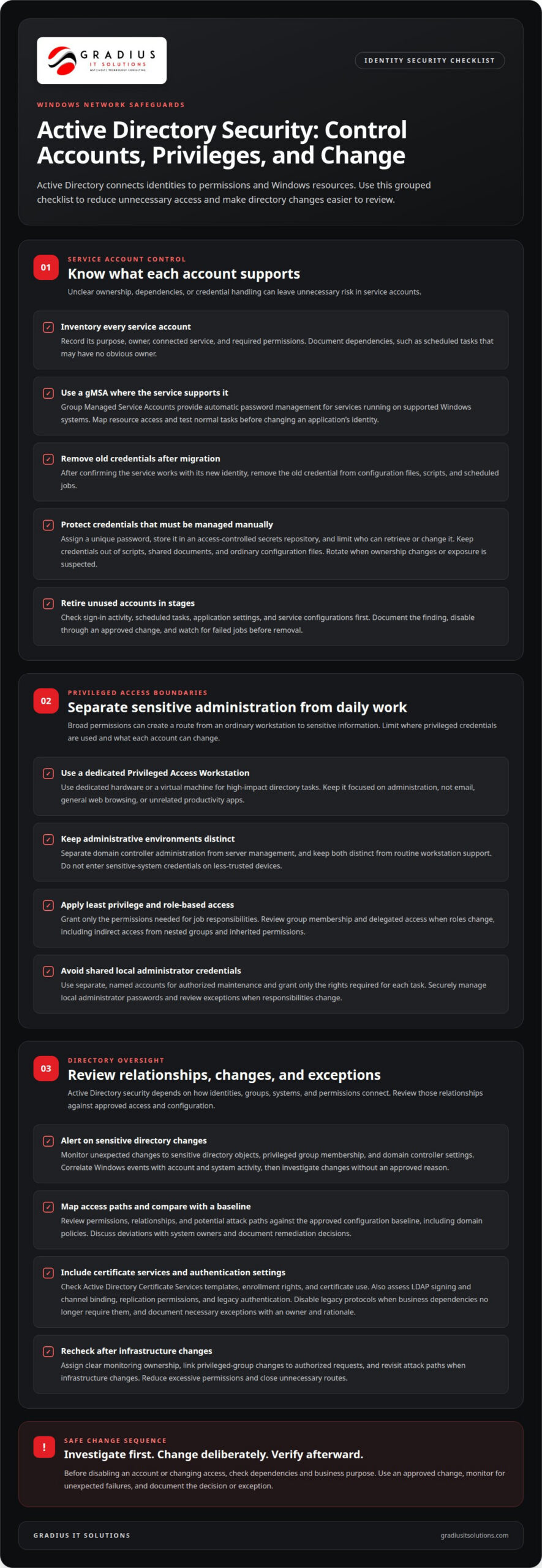
Service accounts let applications and Windows services access specific network resources. Risk increases when teams lose track of account ownership, dependencies, or credential handling. Start an inventory that records each account’s purpose, owner, connected service, and required permissions. For example, a scheduled task may rely on an account with no obvious owner. Documenting the dependency helps distinguish an obsolete identity from one that still supports business operations.
Where supported, use a Group Managed Service Account (gMSA) for compatible services. Microsoft documents that gMSAs provide automatic password management for services running on supported Windows systems. Before changing an application’s identity, map its resource access and test it with the gMSA. Confirm that it can complete its normal tasks, then remove the old credential from configuration files, scripts, and scheduled jobs. This helps prevent a forgotten password from remaining after migration.
If an application requires a manually managed service-account password, assign a unique credential and store it in an access-controlled secrets repository. Limit who can retrieve or change it, and record its owner. Never place credentials in scripts, shared documents, or ordinary configuration files. If the service owner changes or exposure is suspected, rotate the credential and update dependent services through a controlled change process.
Review accounts that appear unused, but investigate dependencies before disabling them. Check sign-in activity, scheduled tasks, application settings, and service configurations. If an account has no valid owner or purpose, document the finding, disable it through an approved change, and watch for failed jobs or unexpected access issues. Remove it only after confirming that business processes no longer rely on it. This staged approach helps avoid disrupting an overlooked workflow.
Apply the same individual-account discipline to local administrator access. Avoid shared credentials across workstations: one exposed password can put multiple devices at risk. Use separate, named accounts for authorized maintenance, and grant only the rights needed for each task. Where local administrator access remains necessary, manage its password securely and restrict who can use it. Record exceptions and review them when device ownership, job duties, or support responsibilities change.
2. What is Active Directory?
Active Directory (AD) is Microsoft’s directory service for organizing network identities and controlling access to domain resources. It helps Windows environments authenticate users and computers and apply permissions to resources. Security depends on how identities connect to systems and groups. An account with broad permissions can provide a route to sensitive information if compromised, even when the initial access came from an ordinary workstation.
Separate administrative environments according to the sensitivity of the systems they manage. Keep domain controller administration distinct from server management, and both separate from routine workstation support. Use a dedicated Privileged Access Workstation (PAW), either dedicated hardware or a virtual machine, for high-impact directory tasks. Do not enter credentials for sensitive systems on less-trusted devices used for routine browsing or email.
Least privilege and role-based access controls limit what each account can change. Assign permissions according to job responsibilities, then review group membership and delegated access when roles change. Look beyond direct group membership: nested groups and inherited permissions can create indirect access to systems or resources. For example, an employee might not belong directly to an administrative group but could inherit access through another group. Trace these relationships to find unnecessary paths to privilege.
To monitor Active Directory for attacks and suspicious changes, alert on unexpected modifications to sensitive directory objects, privileged group membership, and domain controller settings. Correlate Windows events with account and system activity, then investigate changes without an approved administrative reason.
For an AD security audit, use tools that map permissions, relationships, and potential attack paths. Compare findings with your organization’s approved configuration baseline, including settings applied through domain policies. Review deviations with system owners, distinguish approved exceptions from unexplained changes, and document remediation decisions. Reassess the baseline when business systems or administrative responsibilities change.
Include Active Directory Certificate Services (AD CS) in the review because certificate permissions and enrollment settings affect identity and access. Check whether templates, enrollment rights, and certificate use match their intended business purpose. Also assess LDAP signing and channel binding, replication permissions, and legacy authentication. Disable legacy protocols when business dependencies no longer require them, and record necessary exceptions with an owner and rationale.
Assign clear ownership for monitoring. For example, a change to a privileged group should be linked to an authorized request and investigated if no valid reason exists. Review attack paths after infrastructure changes, then reduce excessive permissions and close unnecessary routes. This ties identity security to the Windows network’s actual configuration instead of relying on isolated settings that may overlook connected access.
3. Secure Admin Workstations
Use a dedicated administrative workstation for tasks that can change directory settings, manage servers, or affect other users. Keep the device focused on those duties. Avoid email, general web browsing, and unrelated productivity applications, which can expose privileged sessions to everyday threats. If administrators need different access levels, separate their workflows so routine user activity does not share a session with high-impact changes.
Protect every administrative sign-in with multifactor authentication and a unique identity. Require admins to use the privileged account only for approved work, such as changing a Group Policy setting or managing a server. For routine communication and document work, use a standard account. This separation makes it easier to distinguish expected administrative activity from ordinary user behavior during an investigation.
Limit what can run on the workstation. Application allowlisting can block unapproved software, while endpoint protection and security updates add further layers. Restrict network connections to the systems and services administrators need. For example, a workstation used to administer domain services should not have broad access to unrelated user devices. Record necessary exceptions and review them when administrative duties or infrastructure change.
Use just-in-time elevation where the environment supports it. Instead of keeping an admin in a highly privileged group permanently, grant the required access for a specific task and remove it afterward. Define who approves elevation, what work it covers, and how the change is recorded. This limits how long privileged access remains available and creates a clearer trail for reviewing sensitive administration.
Manage local administrator credentials separately from domain credentials. A local administrator password management process can assign and control device-specific credentials, reducing the risk that one reused password opens several workstations. Restrict who can retrieve credentials, log their use, and rotate them if exposure is suspected. Never store local administrator passwords in shared documents, scripts, or standard user profiles.
Protect Kerberos operations through controlled administration and monitoring. Restrict access to sensitive domain authentication components, track changes to related accounts, and include recovery actions in the incident-response plan. If compromise is suspected, follow a documented recovery procedure that accounts for active services and authentication dependencies. Avoid making emergency changes without coordinating their sequence, since authentication services support access across the Windows environment.
Include administrative workstations and their configurations in backup and recovery planning. Protect backup access separately from workstation administration, and test restoration procedures so administrators know how to rebuild a trusted device. Document the approved workstation configuration, required applications, authentication methods, and recovery steps. This gives the team a consistent baseline for replacing a device or investigating an unexpected configuration change.
4. Domain controller patching and print spooler security
Domain controllers sit at the center of Active Directory authentication, so an unpatched flaw can expose the domain. Treat each controller as a Tier 0 system. Restrict network paths, limit interactive logons, and permit administration only from approved privileged hosts. Evaluate Microsoft security updates promptly, then prioritize deployment by severity, exposure, and potential impact on users or essential services.
Use a documented patch cycle for Windows Server and applications installed on domain controllers. Test updates in a suitable environment when possible, then schedule deployment to reduce service disruption. Track each controller’s operating system, patch status, and outstanding vulnerabilities in one inventory. When possible, scan for and remediate Active Directory vulnerabilities at least once a month. A repeatable schedule helps identify systems that missed an update or fell outside normal maintenance.
Prioritize fixes according to how an attacker could exploit a vulnerability, not simply the number of pending updates. A vulnerability affecting an internet-exposed service or critical authentication component may need faster action than a flaw on an isolated system. Consider exposure, available mitigations, business dependencies, and the controller’s role. Record why an update is deferred, the temporary safeguard, and who is responsible for revisiting the decision.
Review the Print Spooler service on every domain controller. If printing is not required, disable the service to remove an unnecessary component from a high-value server. If a business process depends on it, document the dependency and restrict access to the service and host. Confirm the setting after updates or configuration changes, since a later change could re-enable a service administrators intended to keep disabled.
Reduce domain controller exposure beyond patching. Limit inbound and outbound network communication to what authentication and approved administration require. Restrict interactive logons to authorized administrators, and avoid using domain admins for routine workstation or application tasks. Keep domain controllers physically secure in datacenters, branch offices, and remote locations. These safeguards narrow the paths an attacker could use if another device or account is compromised.
After each patch window, confirm that controllers restarted successfully, authentication works, and security protections remain active. Monitor Windows events and sensitive directory changes for unexpected activity. Keep a record of installed updates, exceptions, and Print Spooler settings for each controller. Combine patching with tested Active Directory backups and a recovery plan so administrators can restore essential identity services if an update or attack disrupts the domain.
5. Active Directory’s role in Windows networks
In a Windows network, Active Directory connects identities with access to shared resources. A user signs in, then permissions help determine which files, applications, and systems that identity can reach. For example, a finance employee may need accounting software and specific folders, while a receptionist needs different resources. This central relationship simplifies access administration, but it also makes directory configuration critical to security.
Authentication confirms an identity; authorization determines what that identity can do. Treat them as separate controls. A successful sign-in should not automatically grant broad access to every connected service. Map each role to its required resources, then configure permissions accordingly. If a user changes departments, update group membership and confirm access to resources from the former role has been removed. This prevents yesterday’s access from quietly becoming today’s exposure.
Active Directory also helps apply consistent settings to domain-joined Windows computers. Group Policy can configure security settings across designated users and devices. Scope policies deliberately: a setting meant for administrator workstations may disrupt ordinary user devices if applied too broadly. Review which organizational units receive each policy, document its purpose, and test changes before wider deployment. A clear link between policy scope and business purpose makes unexpected configuration changes easier to spot.
Because Active Directory has broad reach, a compromised identity can threaten more than one computer. An attacker with access to an account may use its permissions to reach additional network resources. Trace the path from a typical user account to sensitive systems, including nested groups, delegated rights, applications, and service connections. If one identity can move from a workstation to a server and then to sensitive data, reduce unnecessary permissions at every step.
Build an identity map that connects people, devices, applications, and data sources. For each business-critical application, record how it authenticates users, which directory groups control access, and who approves changes. Include cloud-connected services and systems that depend on domain identities. When adding an application, document its access requirements instead of granting broad directory permissions as a shortcut. This makes dependencies visible during upgrades and incident response.
Use the map to monitor changes that could alter the network’s trust boundaries. Alert on unexpected permission changes, new group membership, and modifications to configured policies or sensitive objects. Link each change to an approved administrative task, then investigate activity without a clear business reason. The key point: Active Directory is more than a sign-in directory. It controls how identities move through a Windows environment, so secure configuration must account for every connected resource.
Gradius IT Solutions
Gradius IT Solutions helps organizations manage the systems and security controls that support Windows environments. Its Managed IT Services and Cybersecurity & SOC can support ongoing maintenance, identity protection, and security monitoring alongside your internal administration. These services are a practical next step when account reviews, patching, or access controls need consistent ownership across your environment.
Active Directory security depends on coordinated controls, not a single configuration change. Gradius connects day-to-day IT management with cybersecurity priorities, bringing identity risks and operational needs into the same conversation.
Build a More Resilient Identity Environment
Active Directory security is an ongoing discipline, not a one-time configuration project. As employees change roles, applications connect, and systems evolve, permissions and dependencies can drift. Set a recurring review process with clear ownership, change records, and escalation steps. This helps keep directory decisions aligned with how your organization actually works.
When internal teams need help coordinating this work, Gradius IT Solutions provides Managed IT Services and Cybersecurity & SOC for operational controls and security monitoring. Its Compliance as a Service includes a GRC platform that helps keep technology aligned with your framework and documentation audit-ready. The right mix can connect identity safeguards with broader IT and security priorities.
Take the next step with a focused review of identity access, administrative controls, and the systems that depend on them. A clear plan makes stronger security easier to sustain as your environment changes.
Frequently Asked Questions
What is Active Directory?
Active Directory is Microsoft’s directory service for managing identities and access in Windows networks. It helps administrators organize user and computer accounts and apply permissions to network resources. For example, an employee can use a domain identity to access a workstation and approved shared resources. The directory gives administrators a central place to manage identities, but access still depends on how accounts, groups, and policies are configured.
What are AD security best practices?
Active Directory security best practices combine identity controls, secure administration, and ongoing maintenance. Start by identifying sensitive accounts and systems, then limit permissions to current job needs. Require multifactor authentication for privileged activity, restrict administrative work to trusted devices, and track changes to sensitive directory objects. Maintain a recovery plan and test it. These controls work together: a strong password policy cannot compensate for broad permissions or unmonitored changes.
What are the essential Active Directory security best practices?
The essential active directory security best practices are to reduce unnecessary privileges, protect administrative credentials, secure domain controllers, and monitor changes. Put these controls into a repeatable process: assign an owner for access reviews, record why elevated access is needed, and remove it when responsibilities change. Include service identities and application dependencies in reviews. This makes security part of routine administration rather than a one-time hardening project.
How should organizations secure privileged accounts and administrative access in Active Directory?
Use separate accounts for routine work and administration, and require multifactor authentication for privileged sign-ins. Grant elevated permissions only for approved tasks, preferably for a limited period, and use a dedicated administrative workstation. Keep an approval record for sensitive changes, such as adding a user to a high-privilege group. Monitor administrative activity and investigate sign-ins or permission changes without a clear operational reason.
How should Active Directory service accounts be managed securely?
Give each service account a clear owner, documented purpose, and only the permissions its application needs. Where supported, use a Group Managed Service Account so Active Directory manages password rotation. Prevent service accounts from being used for ordinary interactive sign-ins, and review their dependencies before disabling them. For example, an account tied to a scheduled task may still support a business process even if its owner has changed roles.
What are best practices for Active Directory password policies and MFA?
Use unique, long passphrases and prevent password reuse through an appropriate password history policy. Require multifactor authentication for privileged access, preferably using phishing-resistant methods where available. On-premises Active Directory needs additional configuration or connected services for MFA, so plan that control alongside authentication workflows. The National Institute of Standards and Technology’s Special Publication 800-63 addresses updated password-policy requirements; align settings with organizational needs and current security guidance.
How can organizations secure domain controllers and restrict network access?
Keep domain controllers in physically controlled locations and restrict network communication to required services and approved administrative systems. Limit interactive logons, apply operating-system and application updates promptly, and disable unused services such as Print Spooler when printing is unnecessary. Monitor configuration and network changes so unexpected access paths are visible. Pair these protections with tested directory backups and a recovery process that identifies who can authorize restoration.
How should Active Directory delegation, group membership, and permissions be reviewed?
Review both direct and inherited access, including nested group membership and delegated permissions. Compare each permission with the person’s current responsibilities and required resources. For example, when an employee moves from operations to finance, remove access that no longer supports their role while preserving approved finance resources. Revisit access after role changes, application updates, and administrative restructuring, and document exceptions so they remain accountable.

Article by
Robert Joyce
Robert Joyce is the Owner and Chief Technology Officer of Gradius IT Solutions, a security-first provider of managed IT, cybersecurity, cloud, compliance, and secure AI solutions. Headquartered in New Jersey with satellite offices in the Midwest and South Florida, Gradius serves businesses across the Tri-State Area, Midwest, South Florida, and nationwide.
Robert brings 30 years of IT experience, including 23 years in hedge funds, global banks, and wealth management firms where uptime, security, and continuity are non-negotiable. He began in trade floor support at Caxton, Shell Trading, and Knight, provided senior trade floor support at RBC and SAC Capital, served as VP of IT at EntrustPermal, and was CTO of Gerstein Fisher. After September 11, he helped rebuild critical technology infrastructure for Merrill Lynch.
His expertise spans Microsoft 365, cloud, cybersecurity, networking, infrastructure, disaster recovery, compliance, and strategic IT leadership.
Robert founded Gradius to bring enterprise-level technology and security to small and midsized businesses at a predictable monthly cost. Gradius delivers managed and co-managed IT, cybersecurity, Microsoft 365 and cloud, compliance programs supported by a GRC platform, secure AI consulting, and vCIO services, with a full help desk, 24/7 NOC and SOC monitoring, and U.S.-based onsite engineers and SOC.
Robert works directly with business owners and executives as their single accountable point of contact. His philosophy: one trusted partner, complete IT accountability.
Disclaimer
## Disclaimer
The information provided in this article is for general informational and educational purposes only and should not be considered professional IT, cybersecurity, legal, regulatory, or compliance advice. While Gradius IT Solutions strives to provide accurate and up to date information, technology, security threats, and regulatory requirements change frequently, and we cannot guarantee that all information will remain current or applicable to your specific situation.
Every organization has unique technology, security, compliance, and business requirements. Before implementing any recommendations discussed in this article, you should evaluate their suitability for your environment or consult with a qualified technology professional.
Gradius IT Solutions makes no warranties, express or implied, regarding the completeness, accuracy, reliability, or results obtained from the use of this information. Any actions you take based on this content are at your own risk. Gradius IT Solutions shall not be liable for any direct, indirect, incidental, or consequential damages arising from the use of, or reliance upon, the information contained in this article.
References to third party products, services, or vendors are provided for informational purposes only and do not constitute an endorsement unless explicitly stated.
If you would like guidance tailored to your organization, contact Gradius IT Solutions to schedule a consultation with one of our technology experts.